如何解決 PyCharm Pro 2023.2 執行遠端主機中容器內的 Python 找不到檔案的問題?
一般在使用 Docker 容器開發程式的時候,大部分是在自己的電腦上透過 Docker Desktop 產生 Container,但是如果手上只有弱弱的筆電,沒辦法跑那種很吃效能的程式,那就只能在 Server 上直接用 Docker 開發程式。


- 筆電的 code 要上傳到遠端主機上的哪裡? -> SFTP
- 上傳的檔案怎麼放進容器? -> Mount Volume
- 容器內的 Python 怎麼知道執行路徑? -> Path Mapping
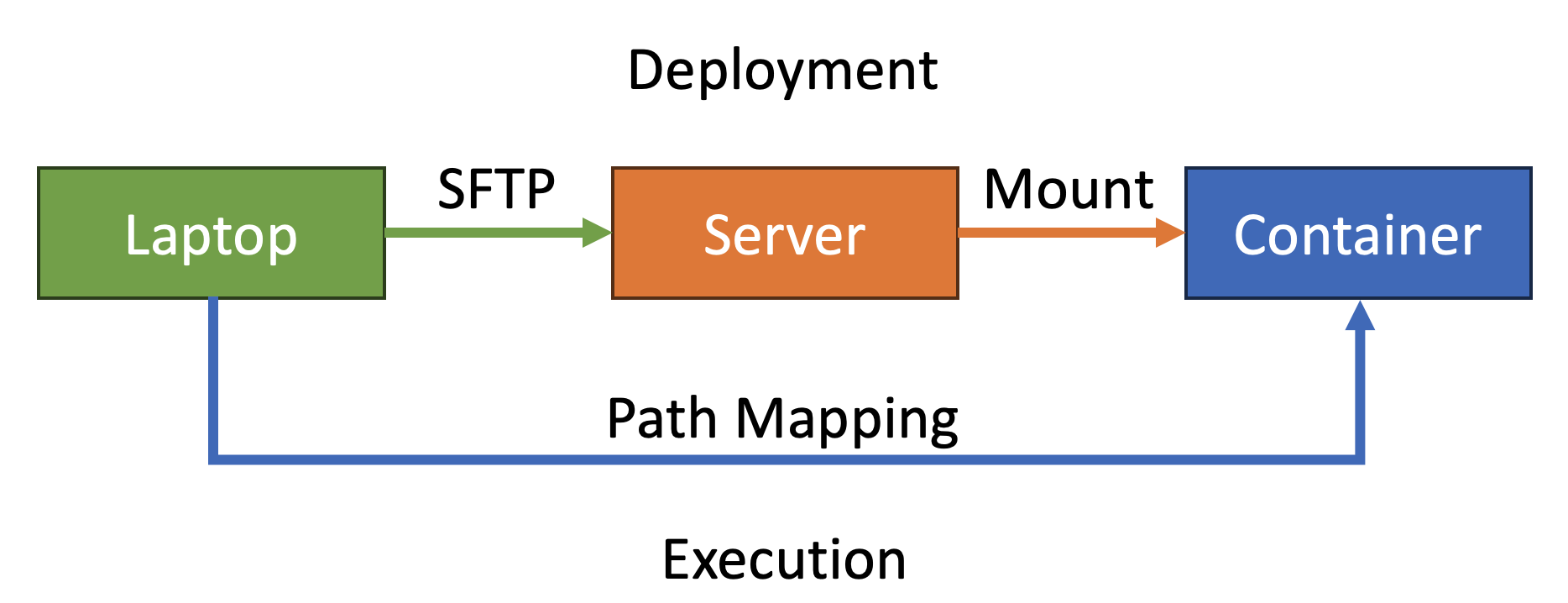
- 筆電的 code 要上傳到遠端主機的哪裡? -> SFTP
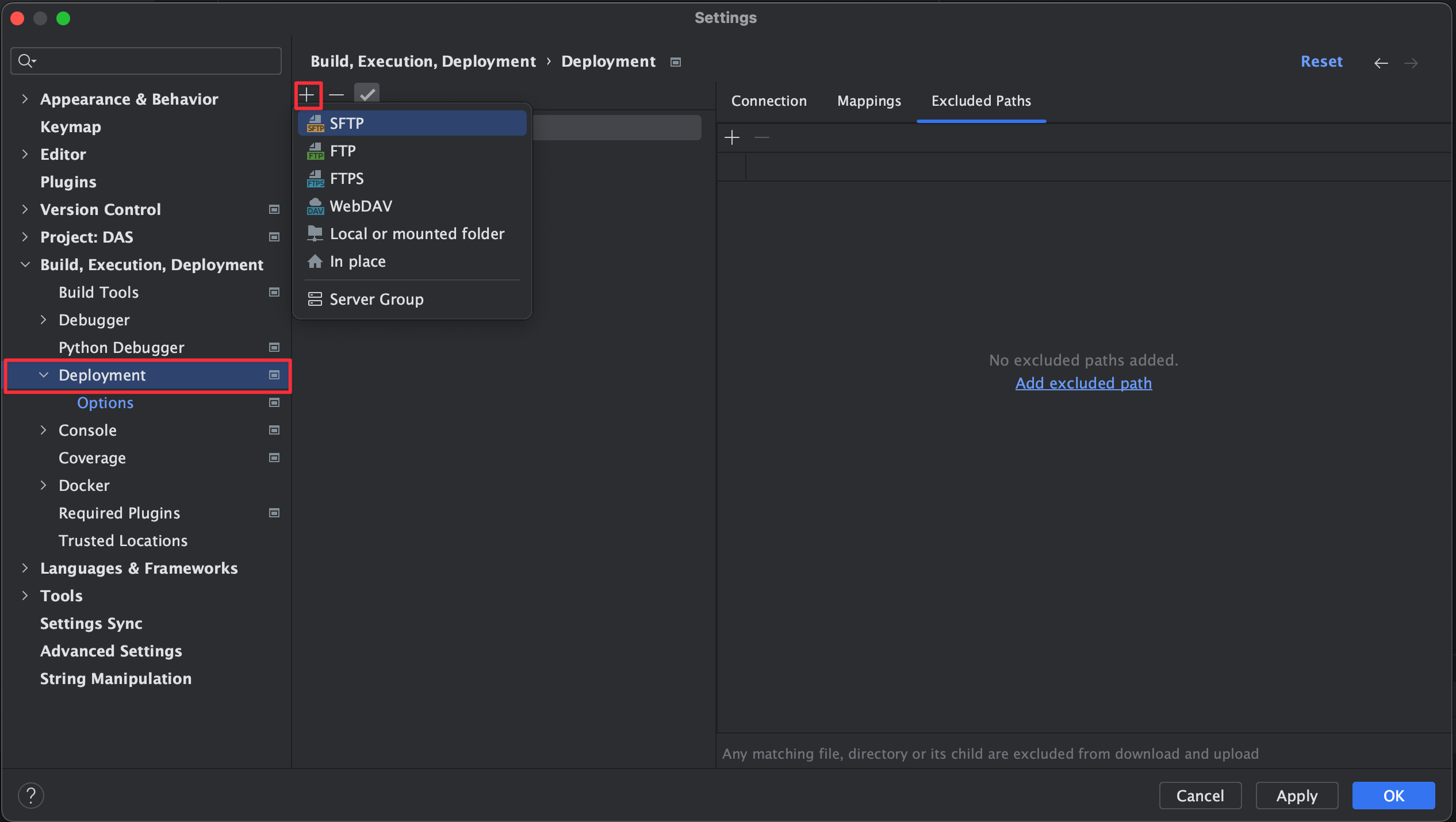
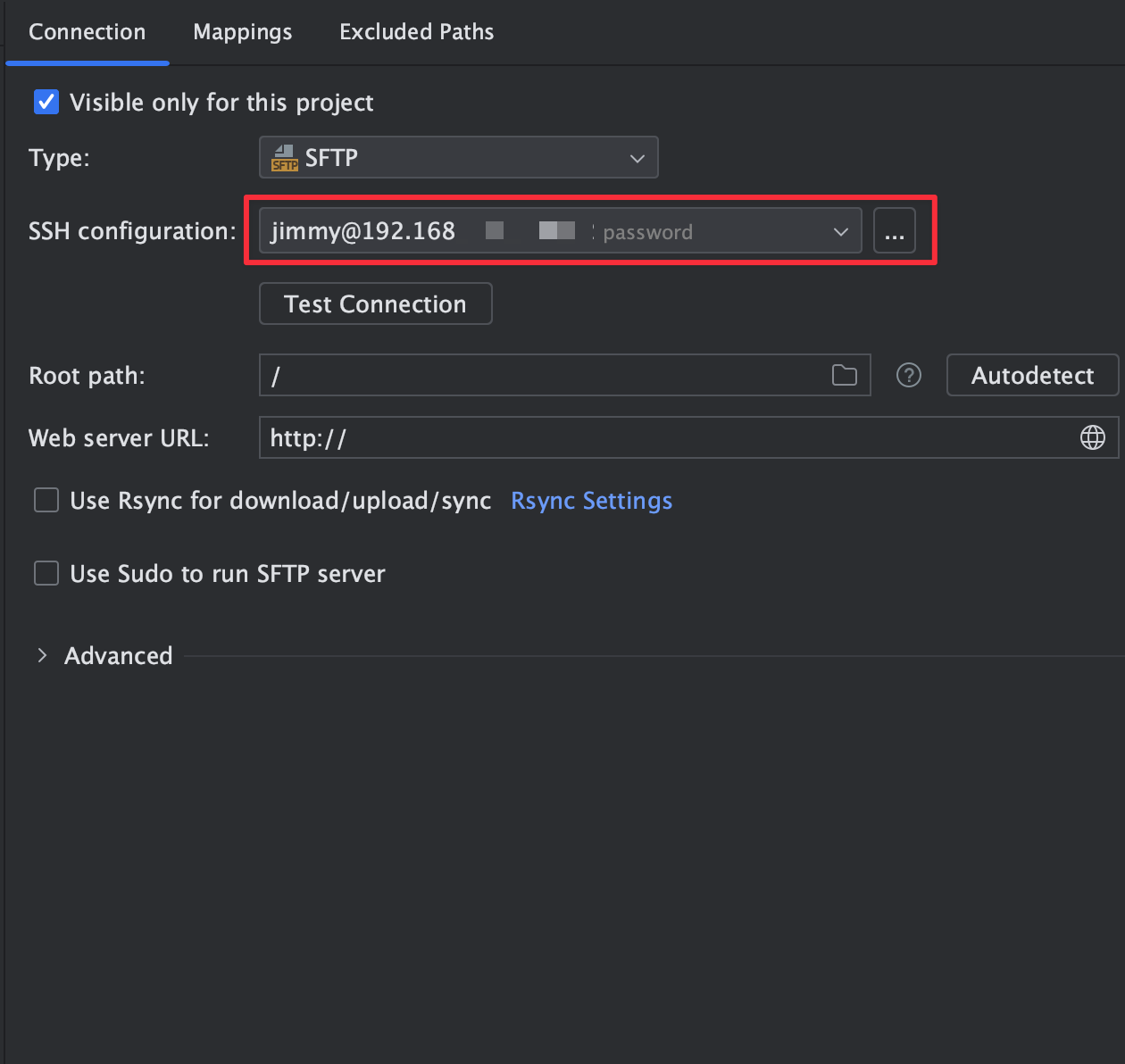
Settings > Deployment > SFTP 建立檔案上傳
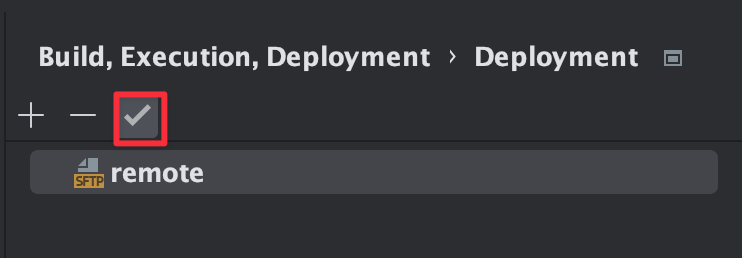
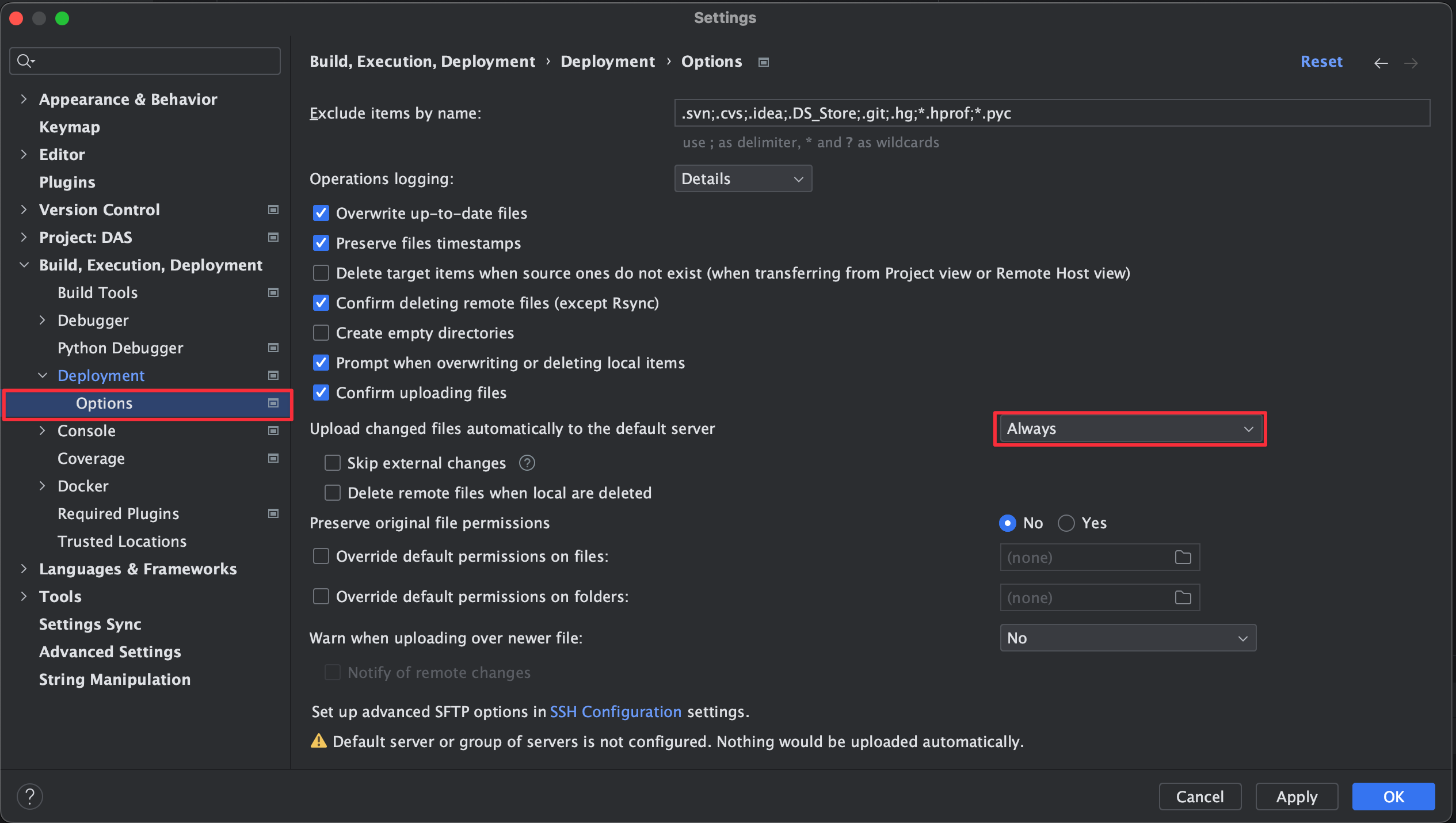
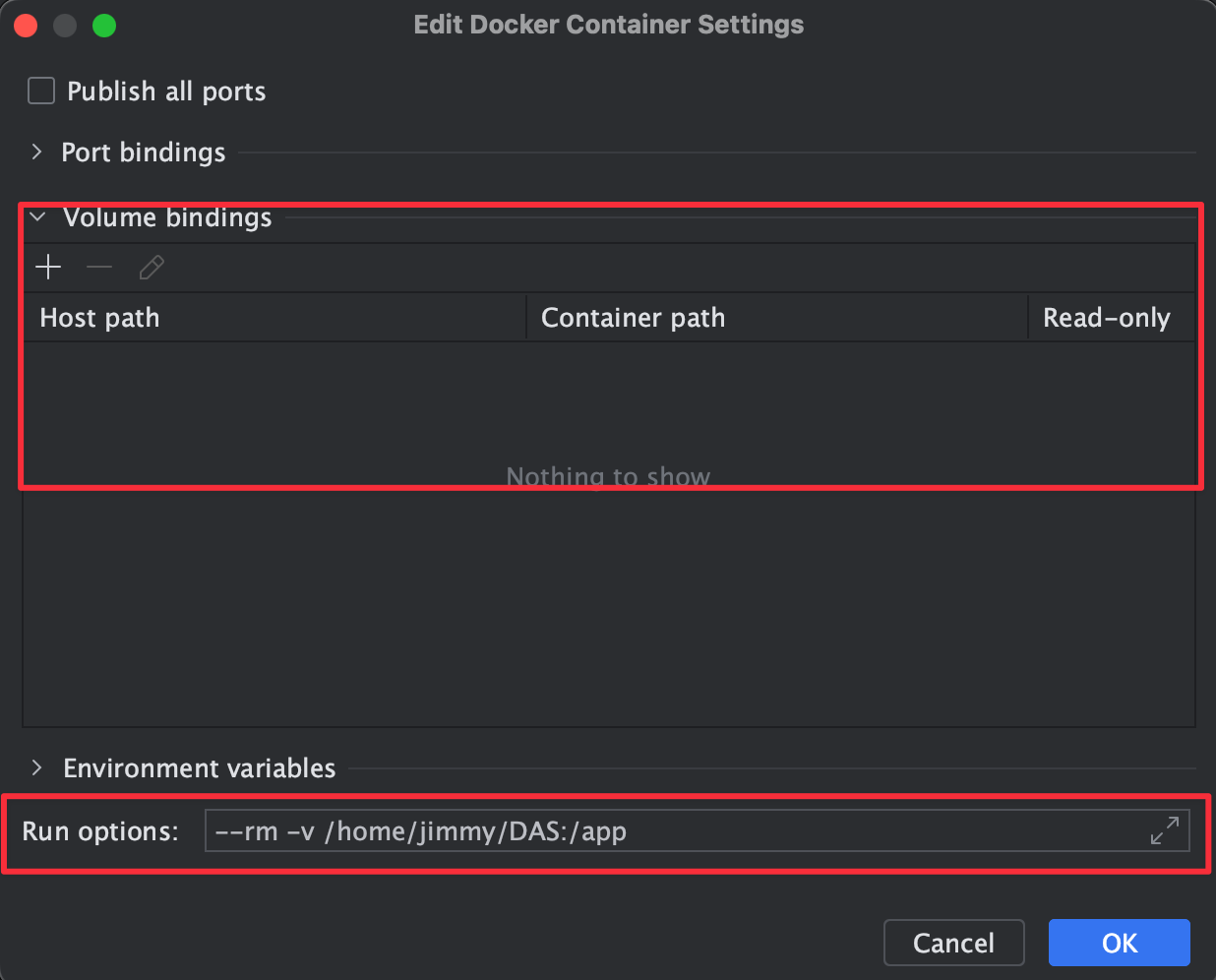
- 上傳的檔案怎麼放進 Container? -> Mount Volume
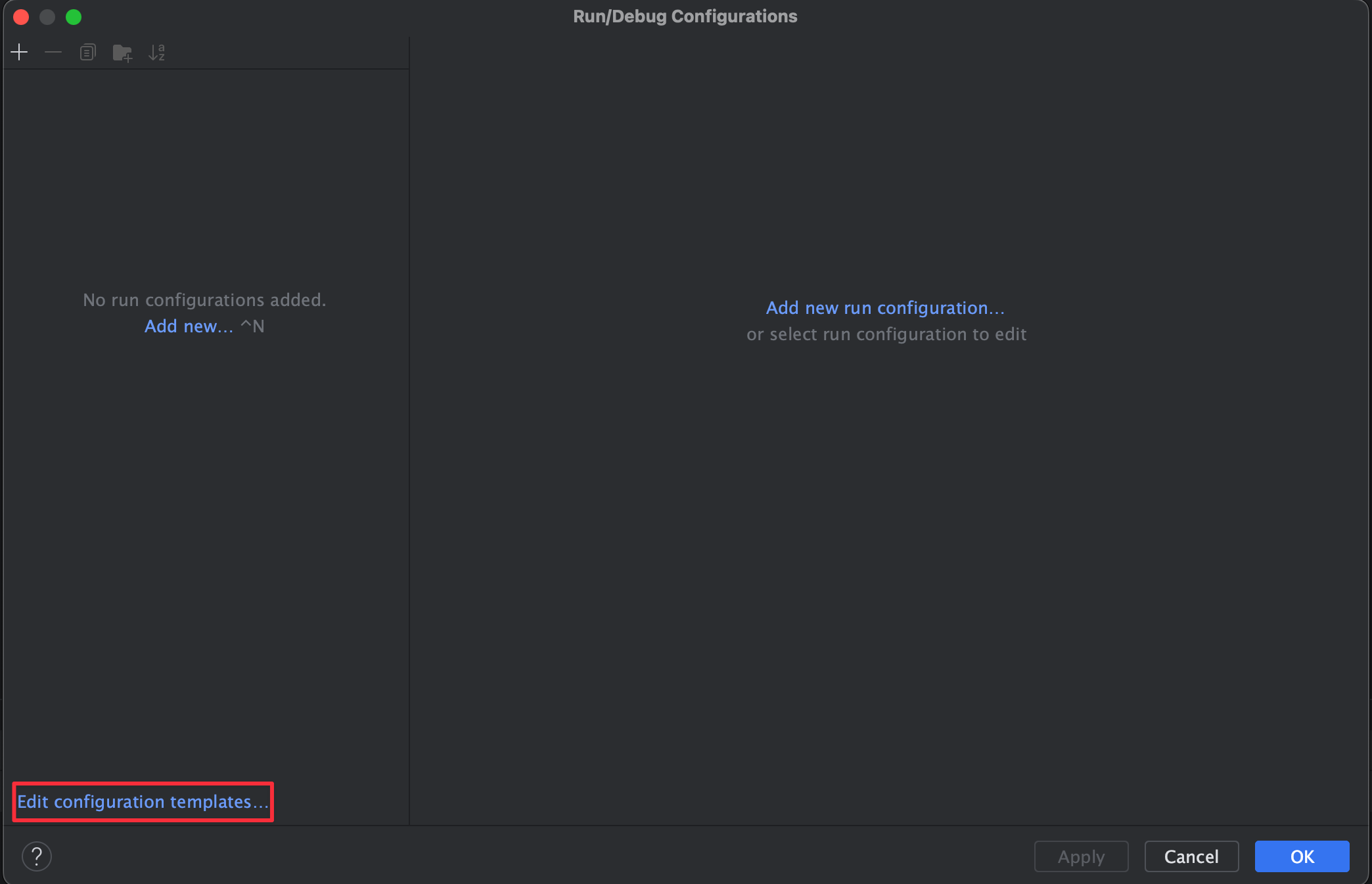
到 Run > Edit Configurations 裡面選 Edit configuration templates… 建立模板,這樣就不用每個程式都要單獨設定。
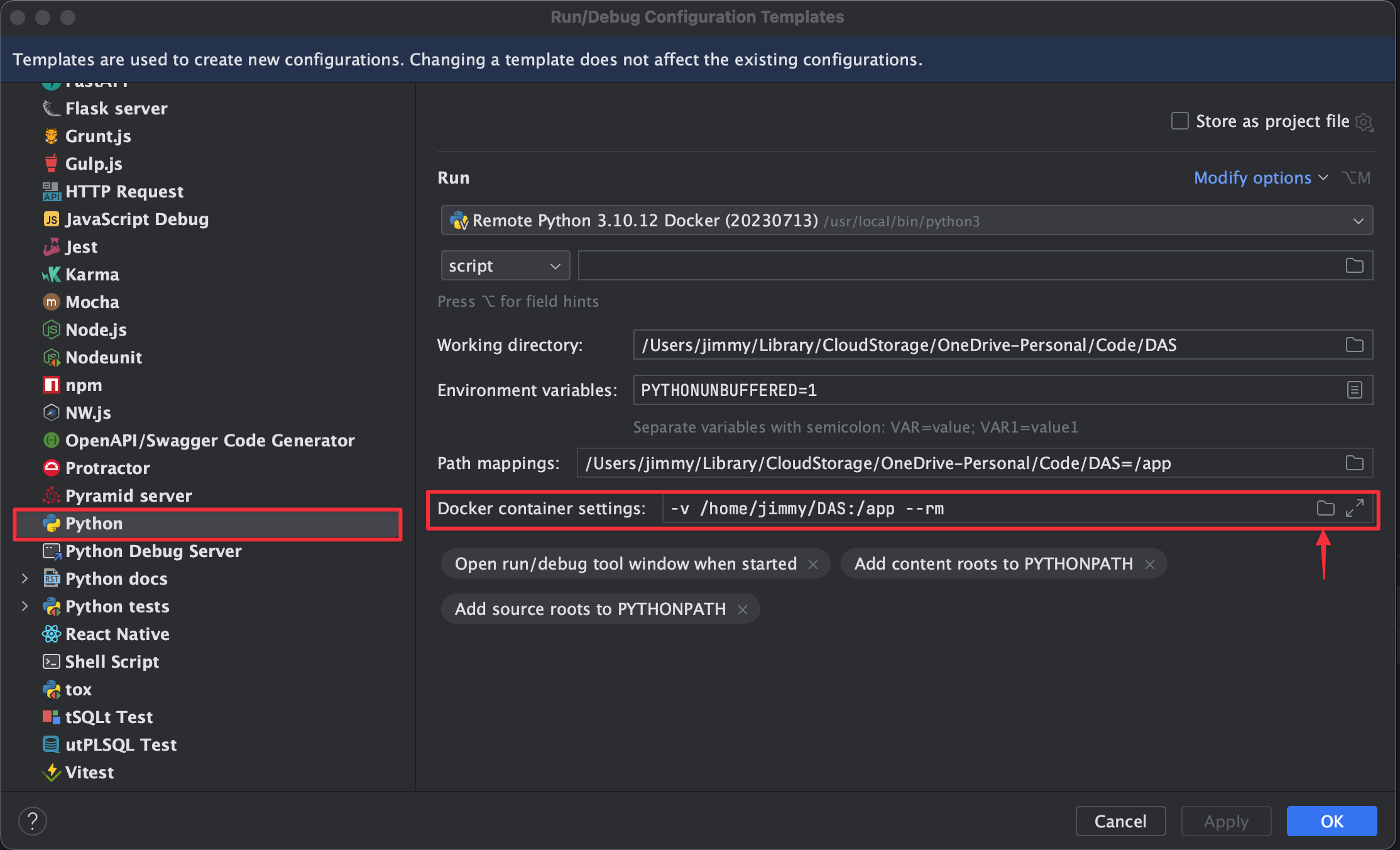
<strong>--rm</strong> 是執行結束自動移除容器<strong>-v /home/jimmy/DAS:/app</strong> 是將路徑掛載到容器內,格式為 <strong>-v 遠端主機路徑:容器內路徑</strong>,容器內路徑可以自訂,只要與外面 Path Mapping 的位置一致就可以了。
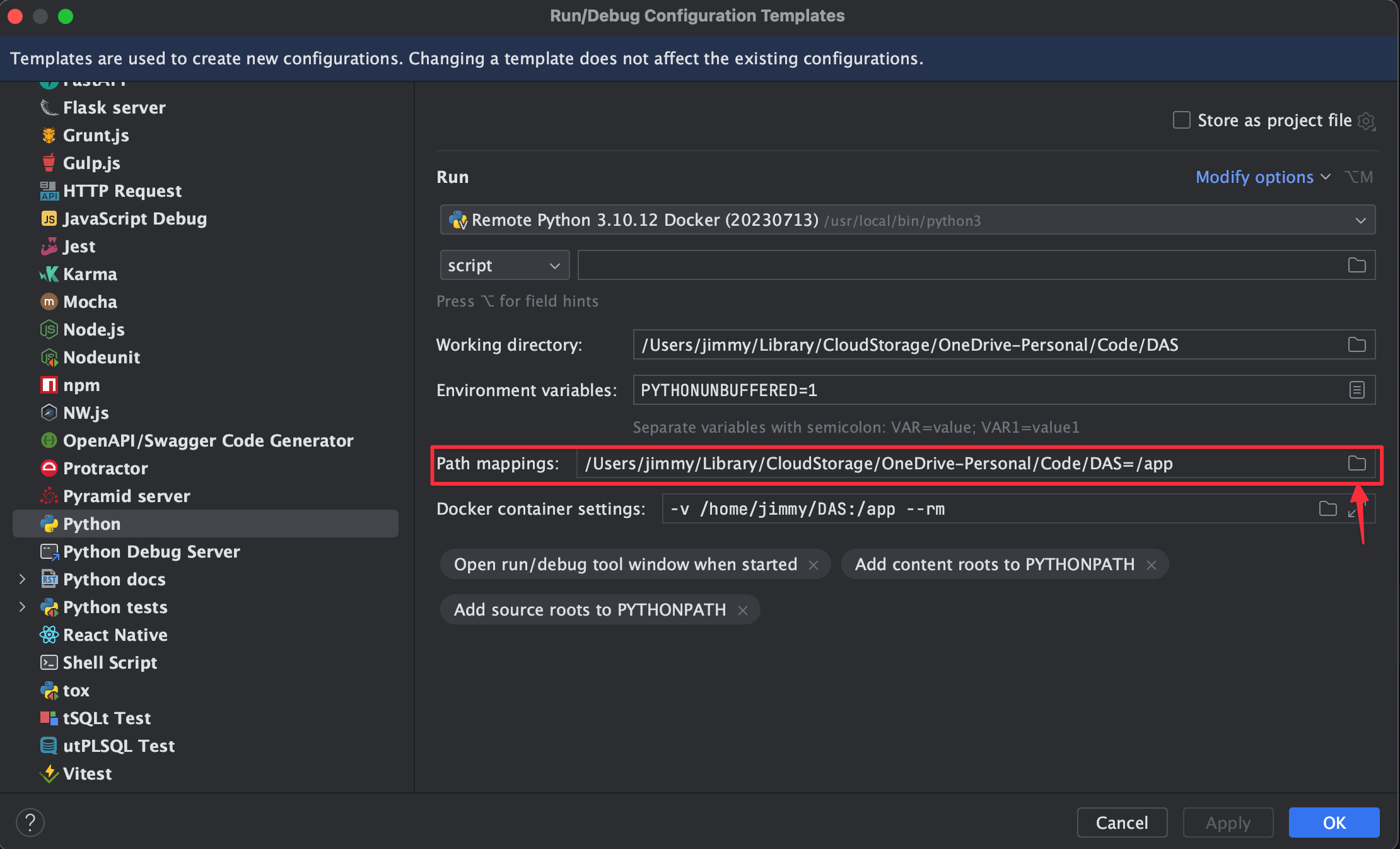
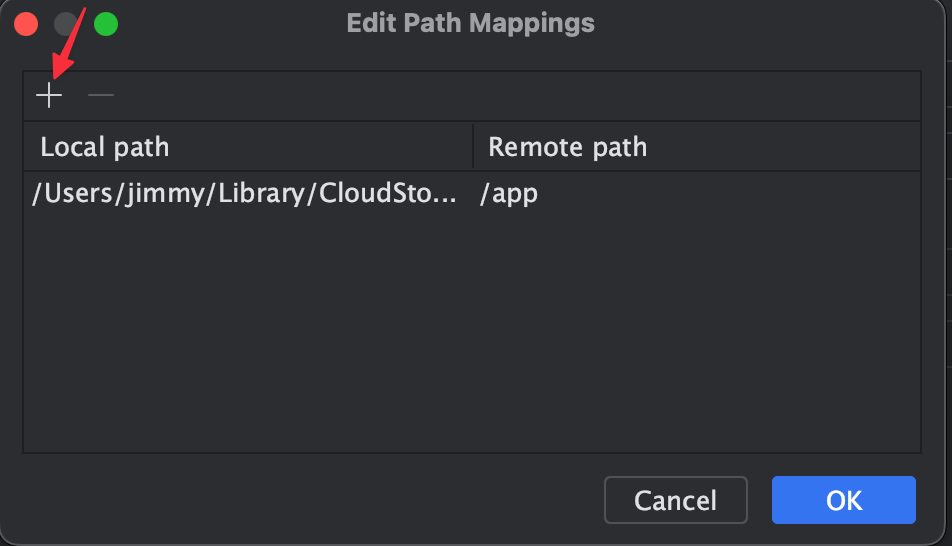
- Container 內的 Python 怎麼知道執行路徑? -> Path Mapping
回到剛剛 Edit configuration templates 的 Python 頁面,選取 Path mappings 旁邊的資料夾圖示。
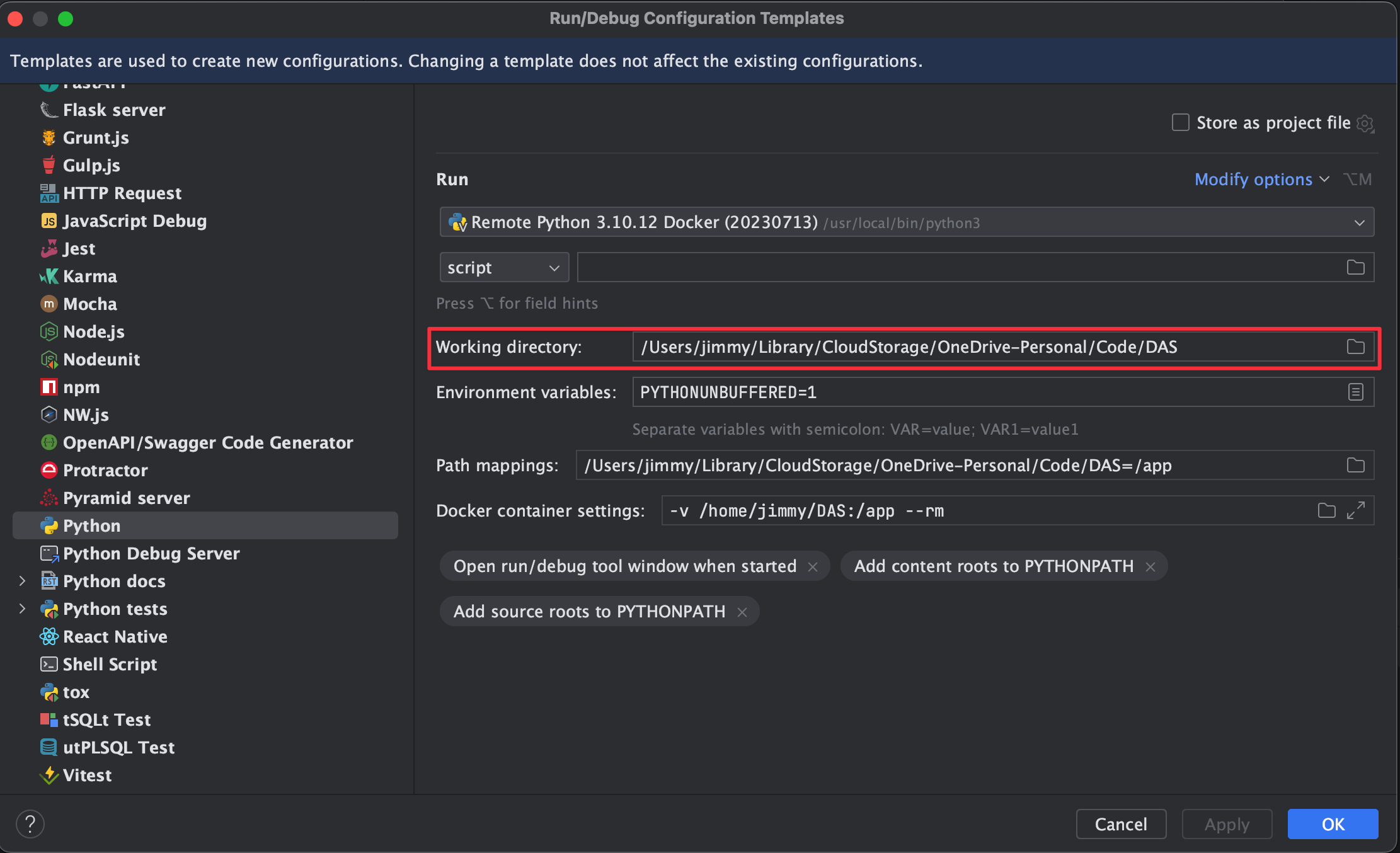
總結
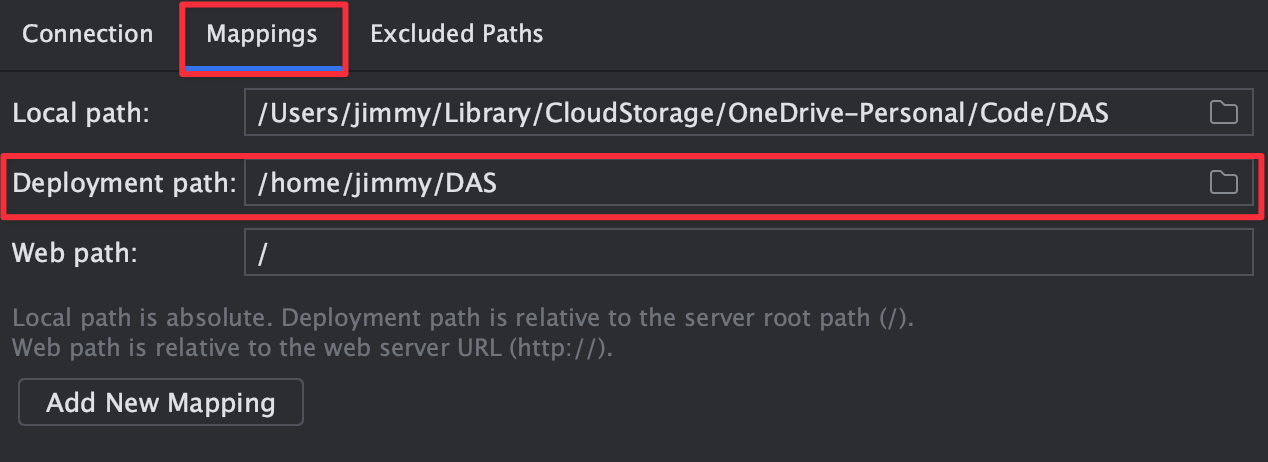
Settings > Deployment > Mappings > Deployment path: 遠端主機資料夾
Run > Edit Configurations > Edit configuration templates.. > Python
Working directory: 筆電內 Project 的資料夾
Path mappings: 筆電內 Project 的資料夾 = 容器內資料夾
Docker container settings: –rm -v 遠端主機資料夾:容器內資料夾
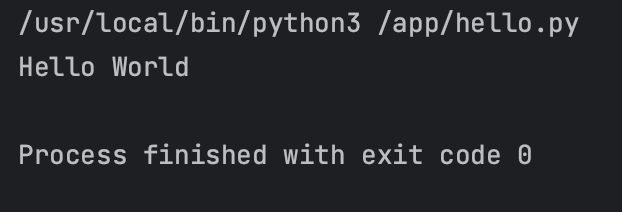
這樣就可以執行遠端容器內的程式了
已知問題
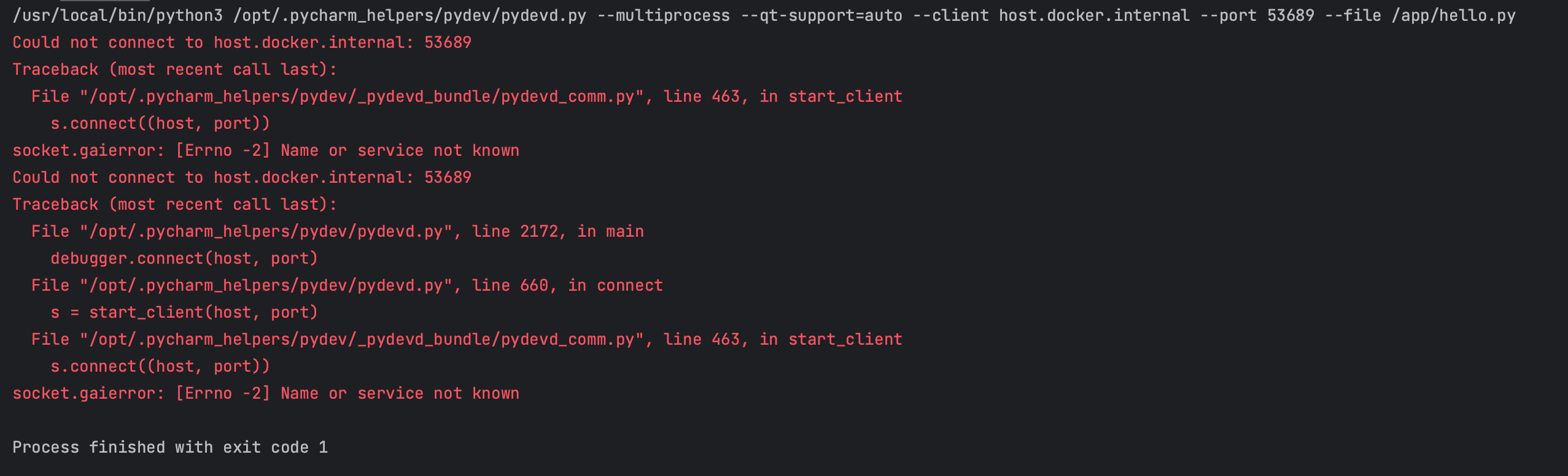
目前使用這個方式沒辦法使用 debugger,初步推測為 container 沒有辦法連接 port 出來,有可能未來 PyCharm 更新會解決這個問題
喜歡這篇文章?
如果這篇文章對你有幫助,歡迎用一杯咖啡支持我持續分享。