如果要在 Python 上面寫 GUI 介面,推薦跨平台跨語言的Qt,它有 App Designer 可以直接排版後自動生成程式碼。用 signal / slot 作為物件之間的溝通,簡化了很多開發上的複雜度。Qt 底層為 C++ ,所以執行速度較快。PyQt5 只支援 Python 3 ,且不向下支援 PyQt4。

Pycharm 算是個人蠻推薦的 Python IDE,有強大的除錯功能,可以自動整理程式碼,並可以與許多工具結合,比用單純的文字編輯器好很多。

以下專注在 Windows 10,Pycharm 灌好的前提下,如何安裝 PyQt5 並連動:

  1. 打開 Settings
![011](https://jimmylab-images.seisblue.com/uploads/2018/07/011.png) 2. 找到 Project Interpreter 並按 + (有 Anaconda 的要先按綠色圈圈取消)
![021](https://jimmylab-images.seisblue.com/uploads/2018/07/021.png) 3. 在上方搜尋 PyQt5 並安裝 PyQt5 與 pyqt5-tools
![031](https://jimmylab-images.seisblue.com/uploads/2018/07/031.png) 4. 回到 Settings 找到 External Tools 並按 +
![041](https://jimmylab-images.seisblue.com/uploads/2018/07/041.png) 5. 設定 Qt Designer 如圖,找到 designer.exe (通常在 Python 根目錄下的 Lib/site-package/pyqt5-tools 裡面),Arguments 設定為`$FileName$`,Working directory 設定為`$ProjectFileDir$`,可以用 Insert Macro 裡面找 ProjetFileDir 生成
![013](https://jimmylab-images.seisblue.com/uploads/2018/07/013.png)
![05_2](https://jimmylab-images.seisblue.com/uploads/2018/07/05_2.png) 6. 設定 PyUIC 如圖,找到 pyuic5.exe (通常在 Python 根目錄下的 Scripts 裡面),Arguments 設定為`$FileName$ -o $FileNameWithoutExtension$.py`,Working directory 設定為`$ProjectFileDir$`
![061](https://jimmylab-images.seisblue.com/uploads/2018/07/061.png)

使用方法:

  • Qt Designer
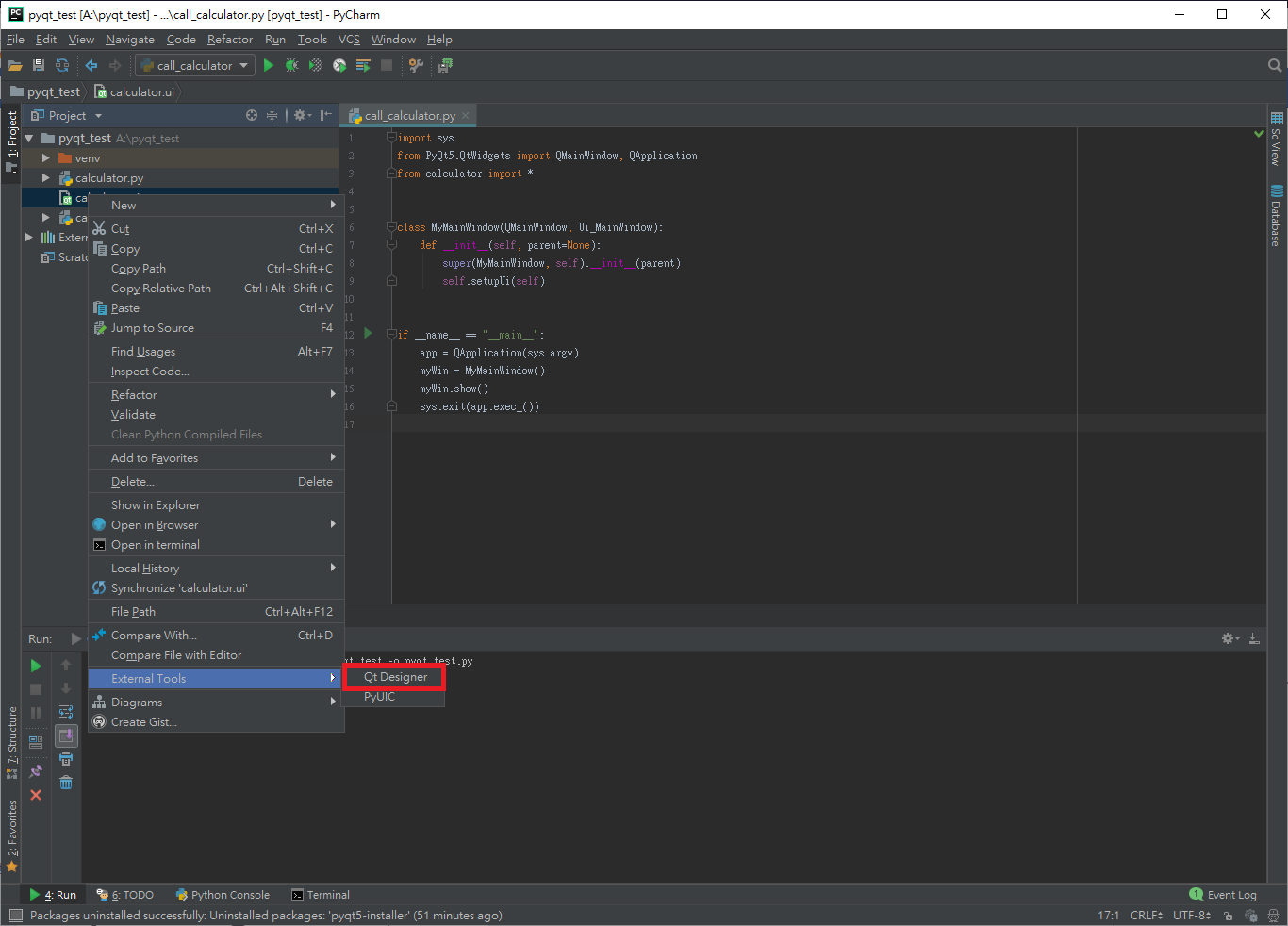
    1. 右鍵選單 External Tools 內執行 Qt Designer
      ![111](https://jimmylab-images.seisblue.com/uploads/2018/07/111.png)
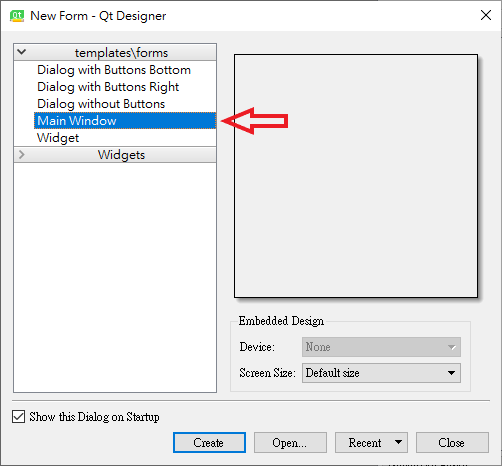
    2. 生成一個 MainWindow App
      ![12](https://jimmylab-images.seisblue.com/uploads/2018/07/12.png)
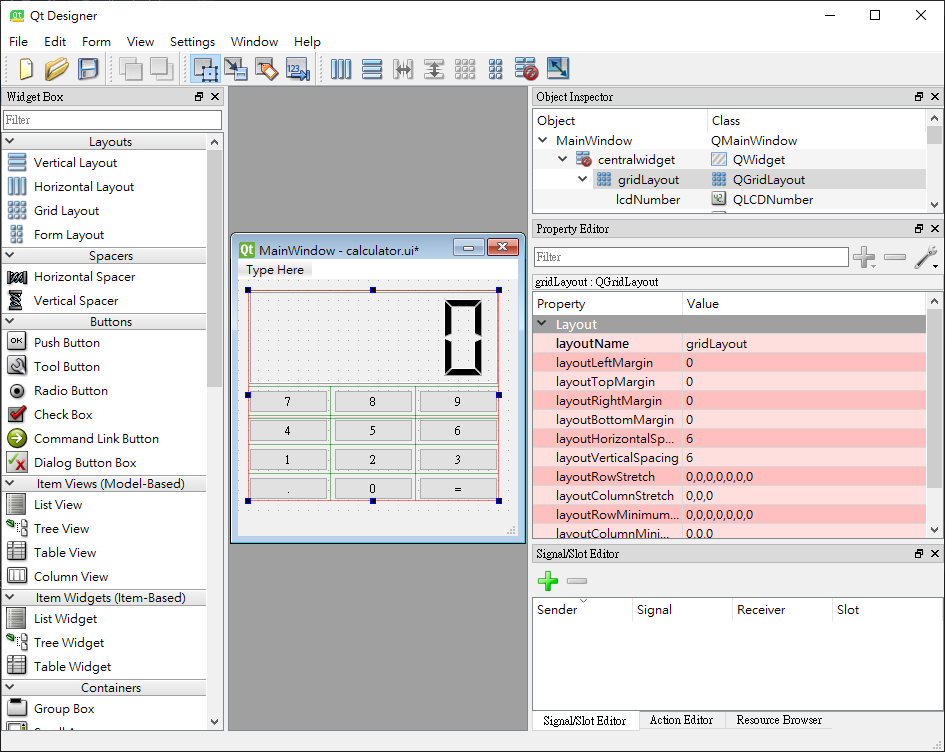
    3. 做一些設計並存檔
      ![13](https://jimmylab-images.seisblue.com/uploads/2018/07/13.png)
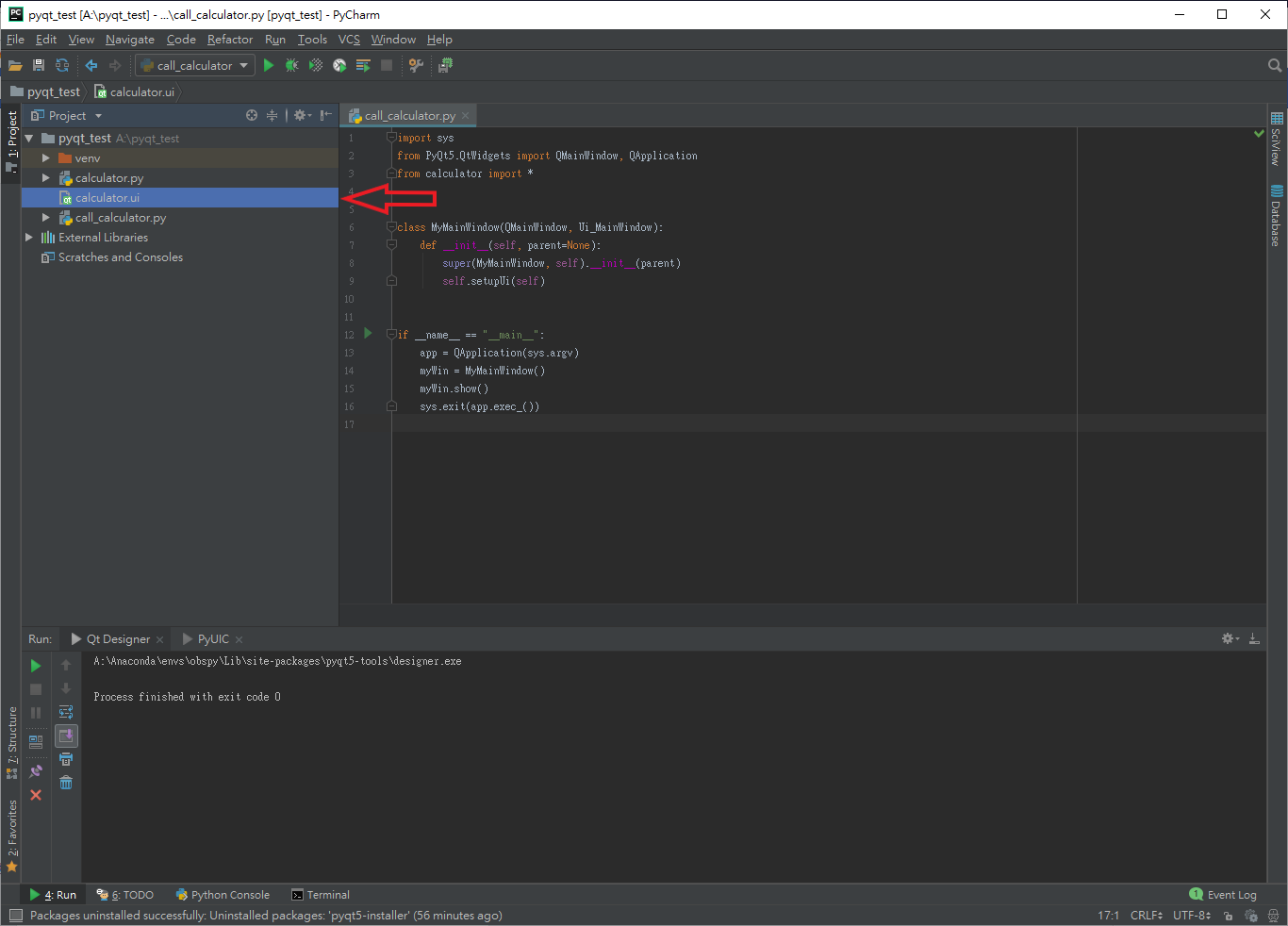
    4. 在 Project 底下會生出一個 .ui 檔
      ![14](https://jimmylab-images.seisblue.com/uploads/2018/07/14.png)
  • PyUIC
    1. 對剛剛產生的 .ui 檔案右鍵,External Tools 內執行 PyUIC
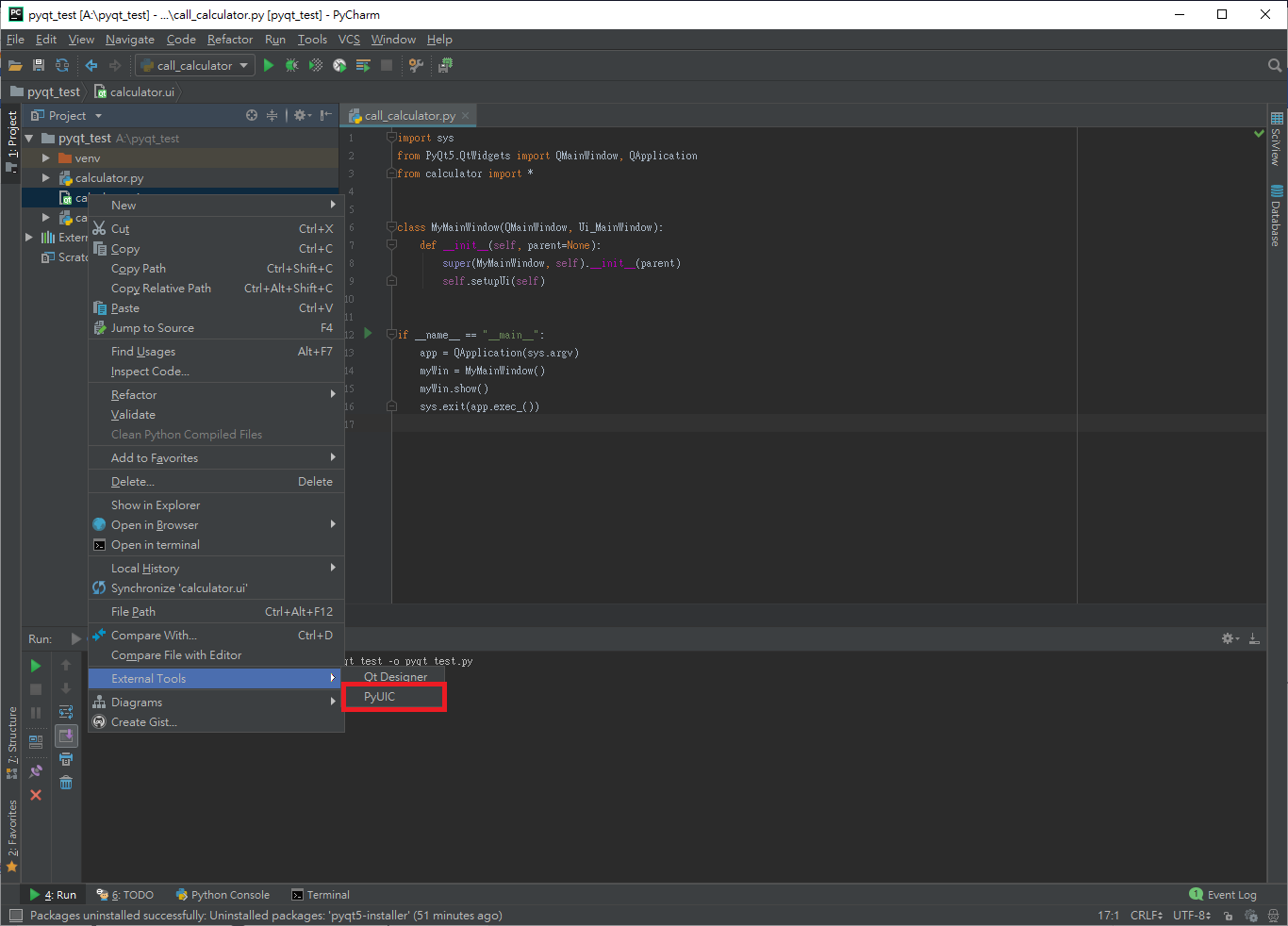
      ![21](https://jimmylab-images.seisblue.com/uploads/2018/07/21.png)
    2. 會自動生成一個 .py 圖形介面檔(不要編輯這個檔案,因為每次生成後會被洗掉)
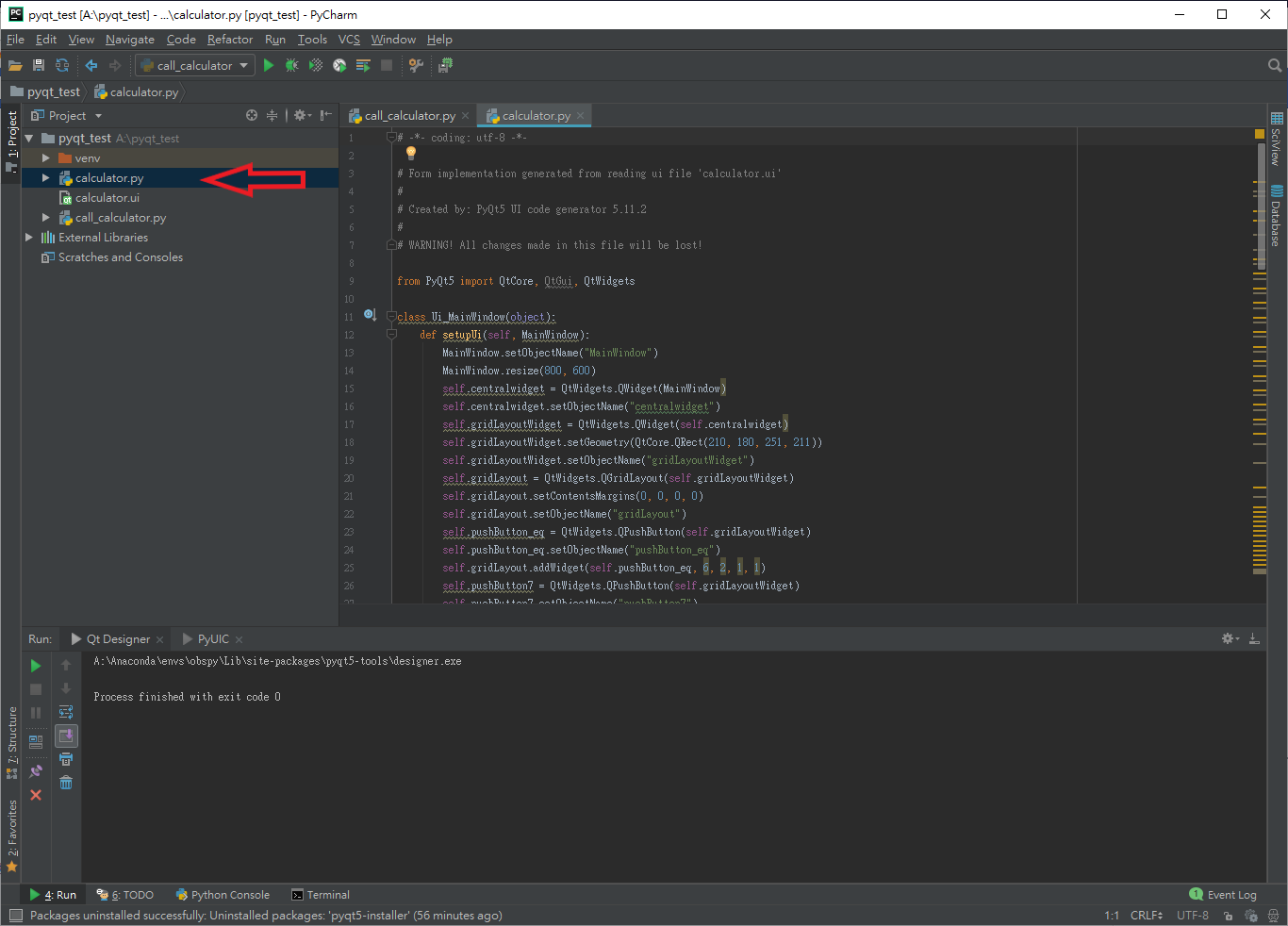
      ![22](https://jimmylab-images.seisblue.com/uploads/2018/07/22.png)

因為 Qt 做出來的是介面,程式邏輯需要另外寫一個檔案,以 calculator.py 介面為例,建立一個call_calculator.py:

<pre class="brush: python; title: ; notranslate" title="">
import sys
from PyQt5.QtWidgets import QMainWindow, QApplication
from calculator import *
 
class MyMainWindow(QMainWindow, Ui_MainWindow):
    def __init__(self, parent=None):
        super(MyMainWindow, self).__init__(parent)
        self.setupUi(self)
 
if __name__ == "__main__":
    app = QApplication(sys.argv)
    myWin = MyMainWindow()
    myWin.show()
    sys.exit(app.exec_())
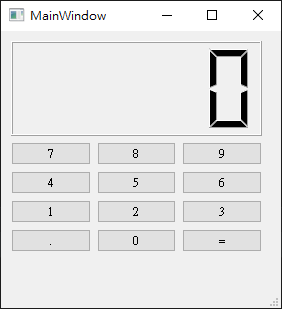
![31](https://jimmylab-images.seisblue.com/uploads/2018/07/31.png)

執行後就會看到剛剛設計的 App,但是後面的邏輯還沒寫,所以所有的按鈕都不會有反應。

邏輯寫法請參照
PyQt5 Signal / Slot 機制入門